DVD Pro – User Guide
Play DVDs, Blu-rays, Audio CDs and video files on Windows – in one clean, fast player.
1. Welcome to DVD Pro
DVD Pro is a desktop player for Windows that handles both the discs on your shelf and the files on your hard drive. It is built on the VLC playback engine (libVLC 3.0), so it opens DVD-Video, Blu-ray, VCD/SVCD, Audio CDs, ISO images and virtually any video or audio file – without codec packs, without extra installs, and without a cluttered interface.
2. What you can play
Video files
| Container | Extensions | Notes |
|---|---|---|
| Matroska | .mkv | Most common format for HD rips and remuxes; full chapter support |
| MPEG-4 | .mp4 .m4v .mov | Phone and camera recordings, web downloads |
| AVI | .avi | Legacy DivX/Xvid files |
| Windows Media | .wmv | Recorded TV, older downloads |
| MPEG transport stream | .ts .m2ts | Broadcast captures, Blu-ray stream files |
| MPEG program stream | .mpg .mpeg .vob | DVD content, camcorder output |
| Web formats | .webm .flv | Downloaded web video |
Audio files
.mp3 .flac .wav .m4a .aac
.ogg .wma .ape .opus
Discs and images
| Media | What DVD Pro reads |
|---|---|
| DVD-Video | A disc in the drive, a VIDEO_TS folder, or a DVD ISO image – with full disc menus and chapters |
| Blu-ray | A disc in the drive, a BDMV folder, or a Blu-ray ISO image – HDMV and BD-J titles |
| VCD / SVCD | A disc or folder containing VCD / MPEGAV directories |
| Audio CD | A music CD in the drive – track list, automatic advance to the next track |
3. Getting started
There are five ways to start playing something:
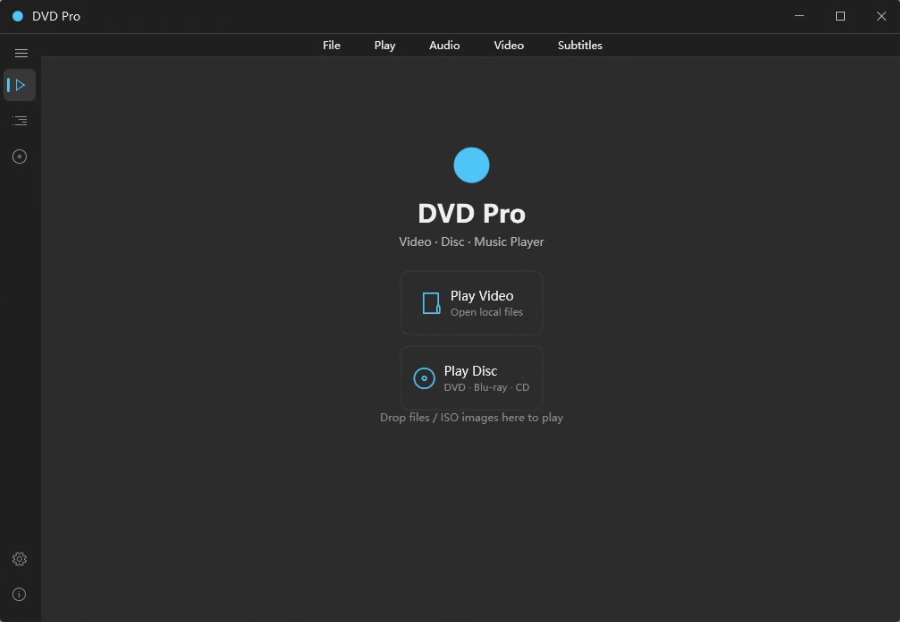
- Play Video – the button on the start screen opens a file picker for any supported video or audio file.
- Play Disc – the button next to it plays whatever disc is currently in your drive.
- Drag & drop – drop a file, a folder or an ISO image anywhere on the window. The drop hint on the start screen tells you when it is ready.
- File menu – Open File, Open Folder, or pick a specific disc type (DVD / Blu-ray / VCD / Audio CD) from the drive list.
- Media library – double-click anything you have already added.
VIDEO_TS.IFO,
a file inside BDMV\STREAM, or a .cda track – DVD Pro recognises the disc structure
and starts the whole disc rather than just that one file, so menus and chapter navigation keep working.
When a disc is inserted while DVD Pro is running, a disc detected banner appears on the start screen so you can begin playback with one click.
4. The player window
Control bar
The bar at the bottom of the video area holds everything you need during playback. In fullscreen it fades out after a few seconds of inactivity – move the mouse to bring it back.
| Control | What it does |
|---|---|
| Play / Pause | Starts or pauses playback. On a disc menu, the same button acts as the OK key for the highlighted item. |
| Stop | Stops playback and returns to the start screen. |
| Previous / Next chapter | Jumps one chapter back or forward. On an Audio CD these become previous track / next track. |
| Timeline | Shows elapsed and total time. Click or drag anywhere on it to seek. |
| Volume | Click the speaker for a slider (0-200%; above 100% applies software gain). Scroll the mouse wheel over the icon to adjust, click the speaker symbol to mute. |
| Speed | Choose 0.5x, 0.75x, 1.0x, 1.25x, 1.5x or 2.0x. The - / + keys fine-tune in 0.25x steps. |
| Play mode | Toggles repeat (loop) on and off. The icon turns blue while looping. |
| Disc menu | Opens the disc menu panel – title list, chapter list, audio/subtitle/angle menus and remote-style navigation. Only enabled for disc media. |
| Fullscreen | Switches to fullscreen and back. F11 or Esc work too. |
Right-click menu
Right-click anywhere on the video for a compact menu with the commands you use most: play/pause, stop, chapter skipping, 10-second jumps, audio and subtitle track selection, aspect ratio, snapshot and fullscreen.
Subtitles
- Load a subtitle file – Subtitle → Load Subtitle, then pick a
.srt,.ass,.ssa,.subor.vttfile. - Switch tracks – Subtitle → Subtitle Track lists every embedded track on the disc or file.
- Fix the timing – Subtitle → Subtitle Sync nudges the subtitles earlier or later; Custom… takes an exact millisecond value (positive = subtitles earlier).
5. Menu reference
The menu bar sits at the top of the window and is available both on the start screen and during playback. The first click on a top-level item opens it; after that, hovering moves between menus. Menus close on their own when the mouse leaves the menu area for a second.
File
| Item | Description |
|---|---|
| Open File Ctrl+O | Pick any supported video or audio file. |
| Open Folder | Play a folder – useful for disc folders and multi-part recordings. |
| Open DVD / Blu-ray / VCD / Audio CD | Lists every drive that currently holds a disc of that type. Discs are shown with their drive letter. |
| Open URL | Play a network stream (http, https, rtsp, rtmp, mms). |
| Recent Media | The last 10 files, folders and discs you opened. Clear empties the list. |
| Eject | Opens the tray of an optical drive. |
| Exit | Closes DVD Pro. |
Play
| Item | Description |
|---|---|
| Title | Every title on the disc. On a Blu-ray this includes the top menu entry; on an Audio CD it becomes the track list. |
| Chapter | Every chapter of the current title. |
| Playback Speed | 0.5x to 2.0x. The current speed is ticked. |
| Jump Back / Forward 10 s | Skips ten seconds in either direction. |
| Play / Pause, Stop | Standard transport controls. |
| Previous / Next Chapter | Chapter navigation; track navigation on Audio CDs. |
| Play Mode | Loop and Single Loop are active in this version. Single, Order and Random are reserved for playlist support in a future update. |
Audio
| Item | Description |
|---|---|
| Audio Track | Every audio stream on the disc or file – languages, commentaries, stereo vs. 5.1. |
| Audio Output Device | Choose which sound card or output to use when you have more than one. |
| Audio Sync | Shift the audio earlier or later to fix lip-sync drift. Custom… accepts exact milliseconds. |
| Equalizer… | 10-band equalizer with preamp and presets. |
| Volume Up / Down, Mute | Same as the control bar, for keyboard-free operation. |
Video
| Item | Description |
|---|---|
| Video Track | Switch between video streams (e.g. multiple angles on a disc). |
| Fullscreen F11 | Toggle fullscreen. |
| Always on Top | Keeps the player above other windows – useful while taking notes. |
| Aspect Ratio | Default, 16:9, 4:3, 1.85:1 or 2.35:1. |
| Rotate / Flip | Rotate 90° left or right, reset, or mirror horizontally / vertically. |
| Video Adjustments… | Brightness, contrast, saturation, hue and gamma. |
| Snapshot | Saves a PNG of the current frame to Pictures\DVD Pro. |
Subtitle
Load Subtitle · Subtitle Track · Subtitle Sync (earlier / later / custom) · Turn Subtitles Off. See The player window for details.
6. Disc playback
DVD-Video
Insert the disc and click Play Disc, or choose File → Open DVD. The disc menu appears as it would on a standalone player.
- Navigate the menu with the arrow keys and confirm with Enter or Space.
- Use Title and Chapter in the Play menu to jump straight to a scene.
- The disc-menu button on the control bar brings up the title, chapter, audio, subtitle and angle menus.
Blu-ray
Blu-ray discs are usually protected. DVD Pro ships with the decryption libraries and a key database, so most discs play straight away:
- AACS – handled by the bundled
libaacslibrary together withkeydb.cfg, a community key database covering tens of thousands of discs. - BD+ – handled by the bundled
libbdpluslibrary. - Keys – on first launch the key database is linked into your user profile (
%APPDATA%\aacs\KEYDB.cfg) where the decryption library expects to find it. Nothing is written to the program folder.
Blu-ray titles appear in the Play → Title list, and the disc-menu button jumps back to the top menu at any time.
VCD and SVCD
Video CDs play like DVDs but without menus. Use File → Open VCD for a disc in the
drive, or open the folder that contains the MPEGAV directory.
Audio CD
Insert a music CD and DVD Pro switches to a dedicated view: a track indicator replaces the video area, the progress bar shows the length of the current track, and playback advances to the next track automatically when one finishes.
- Next / Previous track – the control-bar buttons, or Ctrl+→ / Ctrl+←.
- Jump to a track – Play → Title lists every track on the disc.
- Audio CD tracks cannot be seeked as precisely as files, because the drive reads them in real time – this is normal.
ISO images
DVD and Blu-ray ISO images play without mounting. Drop the file on the window or open it like any other file – DVD Pro inspects the image and picks the right playback path. If the image turns out to be a DVD after all, it retries automatically.
7. Media library
The Media Library page is your shortlist: films, series episodes and albums you go back to often, all one double-click away.
- Add File – pick one or more files (multi-select supported).
- Add Folder – adds every supported media file in that folder, including subfolders.
- Tabs – All, Video and Music filter the list.
- Play – double-click a row, or use the play icon on the row.
- Remove – the X on a row removes that item; Clear empties the whole library after a confirmation.
Video entries get a thumbnail generated in the background, so the list stays responsive even with hundreds of files. Adding a file that is already in the library is ignored, and you are told so.
8. Disc page
The Disc page shows every optical drive that currently holds a disc, with the disc type
detected from its structure – BDMV for Blu-ray, VIDEO_TS for DVD, and Audio CD
or VCD for the others. Click a disc to play it.
- Refresh – re-scan the drives after inserting or swapping a disc.
- Eject – opens the tray of the selected drive.
9. Settings
Appearance
- Follow system – DVD Pro matches your Windows light/dark setting and switches live when you change it.
- Dark – always dark. This is the default.
- Light – always light.
Language
English, 中文, 日本語 or 한국어. On first launch DVD Pro picks the language that matches your Windows display language and falls back to English. Changing it here applies immediately – no restart.
Playback
Skip Blu-ray menu and play the main feature directly. When this is on, Blu-ray discs start playing the longest title instead of showing the disc menu, including Java-based (BD-J) menus. This is useful on machines without a Java runtime, or when you just want to get to the film.
10. Keyboard shortcuts
| Action | Shortcut |
|---|---|
| Play / Pause | Space |
| Skip back / forward 5 seconds | ← / → |
| Previous / next chapter (track on Audio CD) | Ctrl+← / Ctrl+→ |
| Slower / faster playback | - / + (0.25x steps) |
| Fullscreen on / off | F11 |
| Leave fullscreen | Esc |
| Open a file | Ctrl+O |
| Show the disc’s top menu | Shift+M |
| Disc menu navigation | ← ↑ ↓ → |
| Confirm the highlighted menu item | Enter or Space |
11. Troubleshooting
libdvdcss.dll next to the program file.
System requirements
- Windows 10 or Windows 11 (64-bit)
- Any Direct3D-capable graphics adapter – hardware decoding is used automatically where available
- An optical drive, for disc playback (file and ISO playback need none)
- A Java runtime is optional, and only needed for Blu-ray discs with BD-J menus
Need more help?
If something is not covered here, visit the product page at unitepage.com/dvdpro, or leave feedback through the Microsoft Store listing – DVD Pro on the Microsoft Store. Bug reports are easiest to act on when they include the disc or file type, what you expected, and what happened instead.
© DVD Pro – a simple, dependable player for the discs and files you already own.