HEIC Pro — User Manual
The all-in-one HEIC image viewer & batch converter for Windows
1. Welcome to HEIC Pro
HEIC Pro is a lightweight yet powerful desktop application that lets you view, organize, export, and batch-convert HEIC/HEIF images on Windows. Whether you need to open a single iPhone photo or transform an entire folder into JPG, PNG, or even PDF, HEIC Pro handles it all with a clean, modern interface.
2. Supported Formats
Input Formats (what you can open)
| Format | Extensions | Common Use |
|---|---|---|
| HEIC / HEIF | .heic .heif .heiv .hif | iPhone photos (iOS 11+), high-efficiency image format |
| JPEG | .jpg .jpeg .jpe | Universal digital photo format |
| PNG | .png | Lossless graphics, screenshots |
| WebP | .webp | Modern compressed web format |
| TIFF | .tif .tiff | High-quality / printing workflows |
| BMP | .bmp .dib | Uncompressed bitmap |
| GIF | .gif | Animated / simple graphics |
| AVIF | .avif | Next-generation high-efficiency format |
Output Formats (what you can convert to)
JPG · PNG · WebP · TIFF · BMP · GIF · PDF (merge multiple images into one file)
3. Getting Started
Opening Your First Image
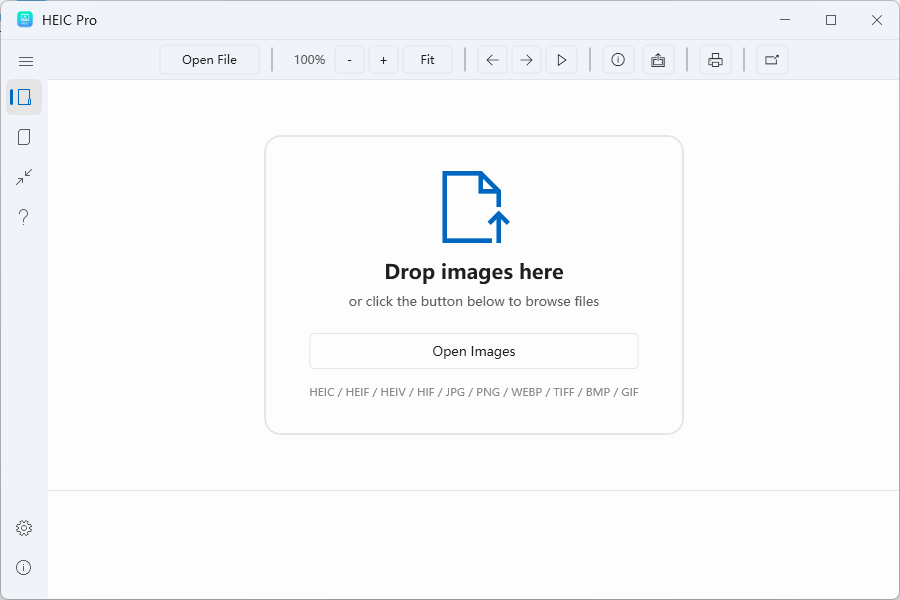
Use any of these methods to open images in HEIC Pro:
- Drag & Drop — Drop individual files or entire folders onto the empty drop zone.
- Open File — Click the folder icon on the toolbar, select one or multiple images.
- Open Folder — Load every supported image in a folder (with optional subfolder scan).
- Double-click — Set HEIC Pro as your default HEIC/HEIF viewer and open images directly from File Explorer.
4. The Image Viewer
Navigating Between Photos
- Click thumbnails in the bottom panel to jump to a specific image.
- Hover the left or right edge of the image — navigation arrows appear for one-click switching.
- Use your keyboard: ← / → to go back / forward.
Zoom & Pan
- Zoom In — Click the magnifier-plus button, or scroll up with the mouse wheel on the thumbnail strip.
- Zoom Out — Click the magnifier-minus button.
- Fit to Window — Click the fit button to make the image match your viewport.
- Double-click the image to open it in a separate floating window (great for multi-monitor setups).
Slideshow Mode
Click the play button on the toolbar to start an automatic slideshow. Images advance at the interval configured in Settings (default is 5 seconds). Click again (or press Esc) to stop.
EXIF Information
The right-side EXIF panel shows camera model, shutter speed, ISO, focal length, GPS coordinates, and other metadata embedded in the photo. Click the info icon on the toolbar to toggle it on/off.
Export (Convert a Single Photo)
- Open the photo you want to export.
- Click the export button on the toolbar.
- Choose your output format, quality, and save location.
- Click Export. The converted file is saved and the output folder opens automatically.
Click the print button and HEIC Pro will launch the standard Windows print dialog, with the image automatically fitted to the printable area of your chosen paper size.
5. Batch Converter
The Converter page is your one-stop shop for bulk transformations. Add hundreds of photos, pick a target format, tweak the options, and start — HEIC Pro handles the rest using parallel processing for maximum speed.
Step 1 — Add Files
- Click Add File to pick individual images (multi-select supported).
- Click Add Folder to load every supported image from a directory tree.
- Drag & drop files or folders directly into the file list.
- Click the red X on any row to remove it, or Clear to start over.
Step 2 — Choose Output Settings
| Setting | Description |
|---|---|
| Output Format | Select from JPG, PNG, WEBP, TIFF, BMP, GIF, or PDF. |
| Merge to PDF | Only visible when PDF is selected — combines ALL images into a single PDF (checked by default). |
| Quality | 1–100 slider (applies to JPG and WEBP). Higher = better quality, larger file. |
| Preserve EXIF | Keeps camera metadata in the output file (recommended ON). |
| Preserve ICC | Keeps the color profile for accurate color reproduction. |
| Output Path | Default = system Pictures folder. Check Save to source folder to put outputs next to originals. |
Step 3 — Convert
Click the Convert button in the bottom-right corner. Each file shows its live status: Pending → Converting… → Success / Failed.
When done, a summary panel displays total / success / failed counts, and File Explorer opens with the converted files selected automatically.
_1, _2, etc. to the output filename.
6. Recent Files
The Recent page keeps a quick-access list of photos you’ve explicitly clicked on in the viewer — so you can jump back to a favorite shot without browsing folders again. Files auto-scanned from the same folder are not added to the list — only ones you’ve personally selected.
7. Settings
Appearance
- Follow system — HEIC Pro switches between dark and light to match your Windows setting.
- Dark — Always use the dark theme (ideal for photo editing at night).
- Light — Always use the light theme.
Language
Choose from 10 interface languages. The change takes effect immediately.
Sidebar
The left navigation bar starts in its collapsed icon-only state (48 px wide). Click the hamburger toggle at the top of the sidebar to expand it to full width.
8. Keyboard Shortcuts
| Action | Shortcut |
|---|---|
| Previous image | ← |
| Next image | → |
| Stop slideshow | Esc |
| Zoom in | + or = |
| Zoom out | - |
| Fit to window | 0 |
9. Frequently Asked Questions
© HEIC Pro — Made with care for photographers, designers, and everyone who values their photos.