Welcome to Translucent Taskbar – a lightweight utility that lets you customize the appearance of the Windows taskbar. Whether you want a fully transparent taskbar, a blurred effect, or a custom accent colour, this guide covers all the essential features to help you get started quickly.
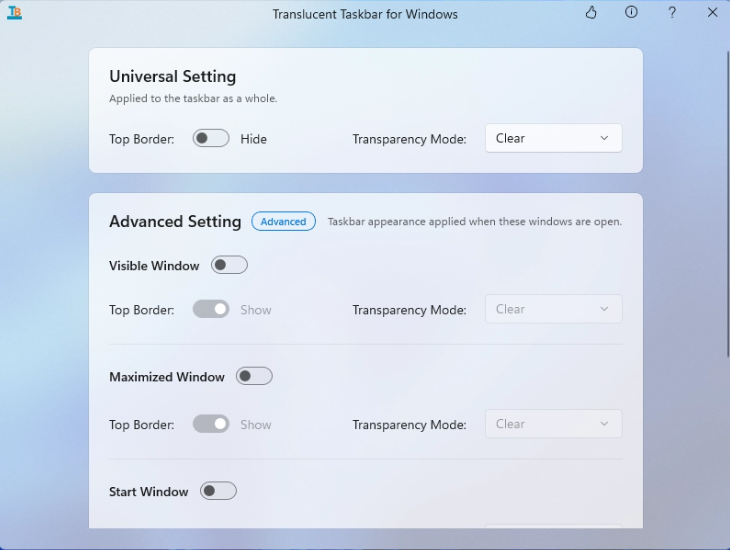
1. Getting Started
Launch Translucent Taskbar
- Double‑click the Translucent Taskbar icon on your desktop.
- Or select it from the Start menu / Applications list.
Main Window Layout
| Area | Description |
|---|---|
| Title Bar | Displays the app name, logo, and quick‑action buttons (Rate, About, Help). |
| Universal Setting | Controls applied to the taskbar as a whole (Top Border, Transparency Mode, Colour). |
| Advanced Setting | Per‑state taskbar appearance controls (Visible Window, Maximized Window, Start, Search, Task View). |
| Scroll Area | The main workspace for adjusting all settings. |
| System Tray Icon | Right‑click to access the context menu with all options and advanced tools. |
2. Transparency Modes
Each taskbar state can be set to one of the following transparency modes (except where noted):
| Mode | Description |
|---|---|
| Normal | Regular Windows style — as if Translucent Taskbar was not running. |
| Clear | Fully transparent taskbar. The taskbar becomes invisible glass. |
| Opaque | Solid, non‑transparent taskbar with a customisable colour. |
| Blur | Slightly blurred taskbar. Windows 10 and Windows 11 Build 22000 only. |
| Acrylic | Fluent Design‑style frosted‑glass effect. |
Note: Colour customisation is available in Opaque, Blur, and Acrylic modes. Click the colour swatch next to the Transparency Mode dropdown to open the colour picker, which supports alpha (transparency) adjustment and live preview.
3. Taskbar States
Translucent Taskbar applies different appearances based on what is happening on your screen. Each state can be independently configured with its own mode and colour.
Desktop (Always Active)
- The base taskbar appearance when no dynamic state is triggered.
- Configured in the Universal Setting section of the main window.
Dynamic States
These states activate automatically when certain conditions are met. Enable them in the Advanced Setting section:
| State | Trigger Condition |
|---|---|
| Visible Window | A window is currently open on the desktop. |
| Maximized Window | A window is currently maximised. |
| Start Window | The Start menu is opened. |
| Search Window | The Search panel is opened. |
| Taskview Window | Task View is opened. |
| Battery Saver | The system is in battery saver mode. (Tray menu only.) |
Note: Multiple dynamic states can be active simultaneously. When several states match, the priority order (highest to lowest) is: Battery Saver → Task View → Search → Start → Maximized Window → Visible Window → Desktop.
4. Universal Setting
The Universal Setting section applies to the taskbar as a whole.
Top Border
- Toggle between Show and Hide to control the top border line of the taskbar.
Transparency Mode
- Select from the dropdown:
Normal,Clear,Opaque,Blur,Acrylic. - The colour swatch appears next to the dropdown when
Opaque,Blur, orAcrylicis selected.
Colour
- Click the colour swatch to open the Colour Picker.
- Adjust RGB values and alpha (transparency) with live preview.
- Click Commit to save the selected colour.
Note: When switching to Clear, alpha is automatically set to 0 (fully transparent). When switching to Blur or Acrylic with alpha at 0, it is automatically set to 50% (0x80) so the effect is visible.
5. Advanced Setting
The Advanced Setting section allows you to configure taskbar appearance for specific window scenarios.
Per‑State Configuration
Each dynamic state (Visible Window, Maximized Window, Start Window, Search Window, Taskview Window) includes:
- Enabled toggle – Turn the state on or off. When off, the controls below are disabled.
- Top Border – Show or hide the top border line for this state.
- Transparency Mode – Select the mode for this state.
- Colour – Customise the colour (available in Opaque, Blur, Acrylic modes).
Note: All Advanced Setting Enabled toggles default to off. The Top Border and Transparency Mode controls remain disabled until Enabled is turned on.
6. System Tray Menu
Right‑click the Translucent Taskbar icon in the system tray to open the context menu.
State Submenus
Each taskbar state has its own submenu for quick adjustments:
- Toggle Peek (Aero Peek button visibility — Windows 10).
- Toggle Line (taskbar line visibility — Windows 11).
- Set Accent Colour via the colour picker.
- Switch transparency mode via radio buttons:
Normal,Opaque,Clear,Blur,Acrylic.
Advanced Submenu
| Option | Description |
|---|---|
| Open Log File | Opens the current log file in your default text editor. |
| Log Verbosity | Set log level: Trace, Debug, Info, Warn, Error, Critical, Off. |
| Dump Dynamic State | Writes current dynamic state information to the log. |
| Edit Settings | Opens settings.json in your default text editor. |
| Reset Settings | Restores all settings to their default values. |
| Disable Hot Settings | When checked, changes made via the tray menu are not saved to the config file. |
| Reset Dynamic State | Resets the current dynamic state. |
| Compact Thunk Heap | Compacts the thunk heap to release excess memory. |
Other Menu Items
- Open at Boot – Toggle whether the app starts automatically with Windows.
- Show Window – Brings the main settings window to the front.
- Tips and Tricks – Opens the online tips page.
- Exit – Saves settings and closes the application.
7. Title Bar Buttons
The main window title bar includes quick‑action buttons (right to left):
| Button | Description |
|---|---|
| Close | Closes the window (the app keeps running in the system tray). |
| Help | Opens the online help page. |
| About | Opens the About dialog with project info and source code link. |
| Rate | Opens the Rate dialog to review the app. |
8. Frequently Asked Questions
The tray icon is not showing.
- Check Windows system tray settings to make sure the icon is not hidden.
- If this is a fresh install, the icon should appear automatically after launch.
The Blur option is not available.
- Blur mode is only supported on Windows 10 and Windows 11 Build 22000. On newer Windows 11 builds, the Blur option is hidden.
I selected a colour but cannot see the effect.
- Make sure the transparency mode is set to Opaque, Blur, or Acrylic. In Clear mode, the taskbar is fully transparent and the colour is not visible.
- In Blur or Acrylic mode, if alpha is 0, it will be automatically set to 50% so you can see the effect.