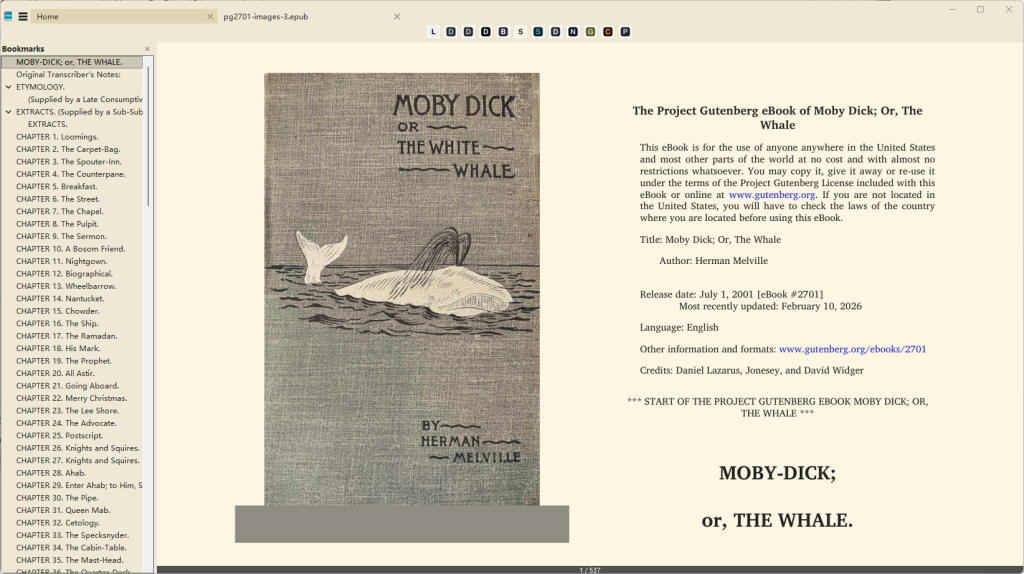
Welcome to EPUB Reader – a lightweight, fast document and eBook reader. It supports EPUB, MOBI, PDF, comic books (CBZ/CBR), DjVu, XPS, CHM, and more. It launches instantly and uses minimal memory, making it an ideal choice for everyday reading.
This guide walks you through EPUB Reader’s core features, from opening files to everyday usage.
1. Basic Operations
Opening Files
- Via Menu:
File>Open(orCtrl+O), then select your file. - Drag and Drop: Drag a file from your file explorer directly into the EPUB Reader window.
- Command Line (advanced): Run
EPUBReader filenamein your terminal.
Tabs and Windows
- New Window: Press
Ctrl+Nto open a new reading window. - Switch Tabs: Type
@in the command palette to quickly switch between open tabs. - Open in New Window: Use the
-new-windowcommand-line argument.
Saving and Printing
- EPUB Reader automatically remembers your reading progress (current page, zoom level, view mode, etc.) – no manual saving required.
- Print:
File>Print(orCtrl+P) – choose your printer and number of copies.
Closing and Exiting
- Close Current Document:
Ctrl+WorCtrl+F4. - Exit:
File>Exit, or simply close the window.
2. Reading and Navigation
Page Navigation
| Action | Shortcut |
|---|---|
| Next Page | PageDown or Space |
| Previous Page | PageUp |
| Go to Page | Ctrl+G, enter page number |
| Table of Contents | F12 |
Zoom and View
- Zoom In/Out:
Ctrl+Plus/Ctrl+Minus, or use toolbar buttons. - Fit Width:
Ctrl+0(zero) – fits page width to the window. - Full Screen:
F11to enter full screen; pressF11again to exit. - Presentation Mode: Launch with
-presentationcommand-line argument. - Continuous Scroll: Press
cto toggle continuous scrolling mode.
Bookmarks (Favorites)
- Add Bookmark: Press
Ctrl+Bto bookmark the current page. - View Bookmarks: Press
Ctrl+Kto open the command palette, then type$– all bookmarks appear. Current document’s bookmarks are listed first; others show the file name. - Jump to Bookmark: Click any entry in the bookmark list.
3. Search and Annotations
Finding Text
- Open Find Bar: Press
Ctrl+For/(slash) – the find bar appears near the toolbar. - Live Search: As you type, all matches are highlighted in real time, with a “current/total” match counter.
- Find Next/Previous:
- When focus is in the document:
F3/Shift+F3. - When focus is in the find box:
Enter/Shift+Enter.
- When focus is in the document:
- Floating Find Window: Click the expand button on the right side of the find bar to turn it into a movable, resizable floating window that also shows a list of all matches.
Highlight Annotations (PDF only)
- In PDF files, select text and press
ato highlight the selection.
4. Command Palette – The Efficiency Hub
The command palette is EPUB Reader’s most powerful productivity tool. Press Ctrl+K to invoke it. Type specific prefixes for different actions:
| Prefix | Function |
|---|---|
none or > | Show all available commands |
# | Open a file from history |
@ | Switch to another tab |
* | Jump to table of contents |
$ | Jump to a bookmark |
How to use:
- Press
Ctrl+Kto open the command palette. - Type text or a prefix – the match list narrows down in real time.
- Use
↑/↓arrows to navigate, pressEnterto execute (or double-click). - Press
Escor click outside to close.
5. Frequently Asked Questions
Q: What file formats does EPUB Reader support?
A: EPUB, MOBI, PDF, CBZ, CBR, DjVu, XPS, CHM, and common image formats.
Q: How do I enter full screen mode?
A: Press F11 to enter full screen; press F11 again to exit.
Q: What if my document is password-protected?
A: EPUB Reader will prompt you for the password. You can also specify it in advance using the -pwd password command-line argument.
6.Office Module Help
For help documentation regarding the Office modules (Word, Excel, and PowerPoint), please refer to the user guide provided with Unite Office.